Find Your Router IP Address
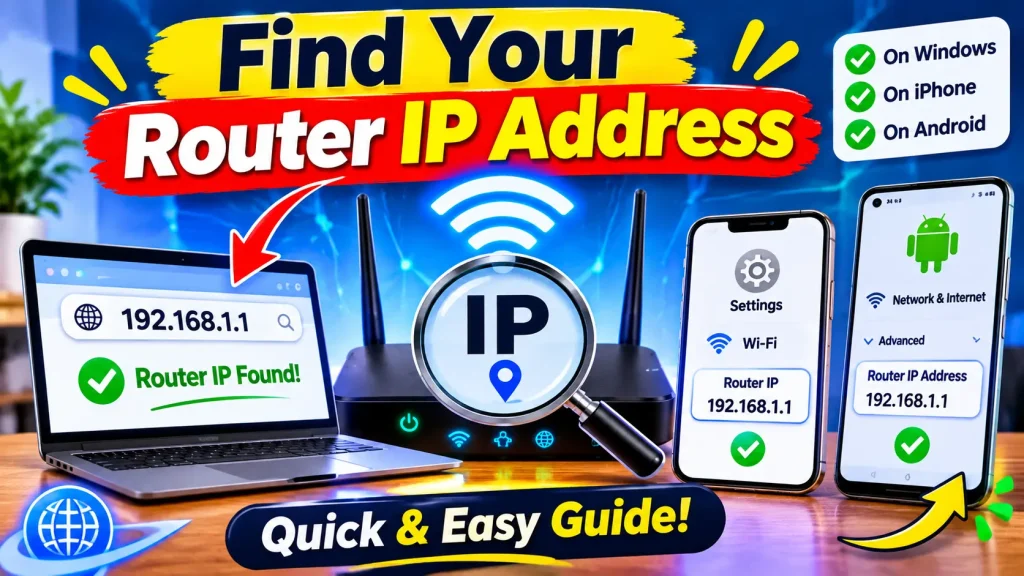
Your router IP address is the local address that connects your devices to your router and allows you to access its administration settings. You may need this address to change your Wi-Fi password, update network settings, manage connected devices, or troubleshoot internet problems.
If you don’t know your router’s IP address, you can find it directly from your computer or smartphone. The process is simple and doesn’t require any special software.
In this guide, you’ll learn how to find your router IP address on Windows, Android, iPhone, and Mac. We’ll also explain how to access the IP of your WiFi router, identify common gateway addresses, and fix problems when the address doesn’t work.
Quick Answer
How to Find Your Router IP Address
The easiest way to find your router IP address is to check the Default Gateway or Router field in your device’s network settings.
- Windows: Open Command Prompt, type
ipconfig, and check the Default Gateway. - Android: Open Wi-Fi settings, select your connected network, and look for Gateway.
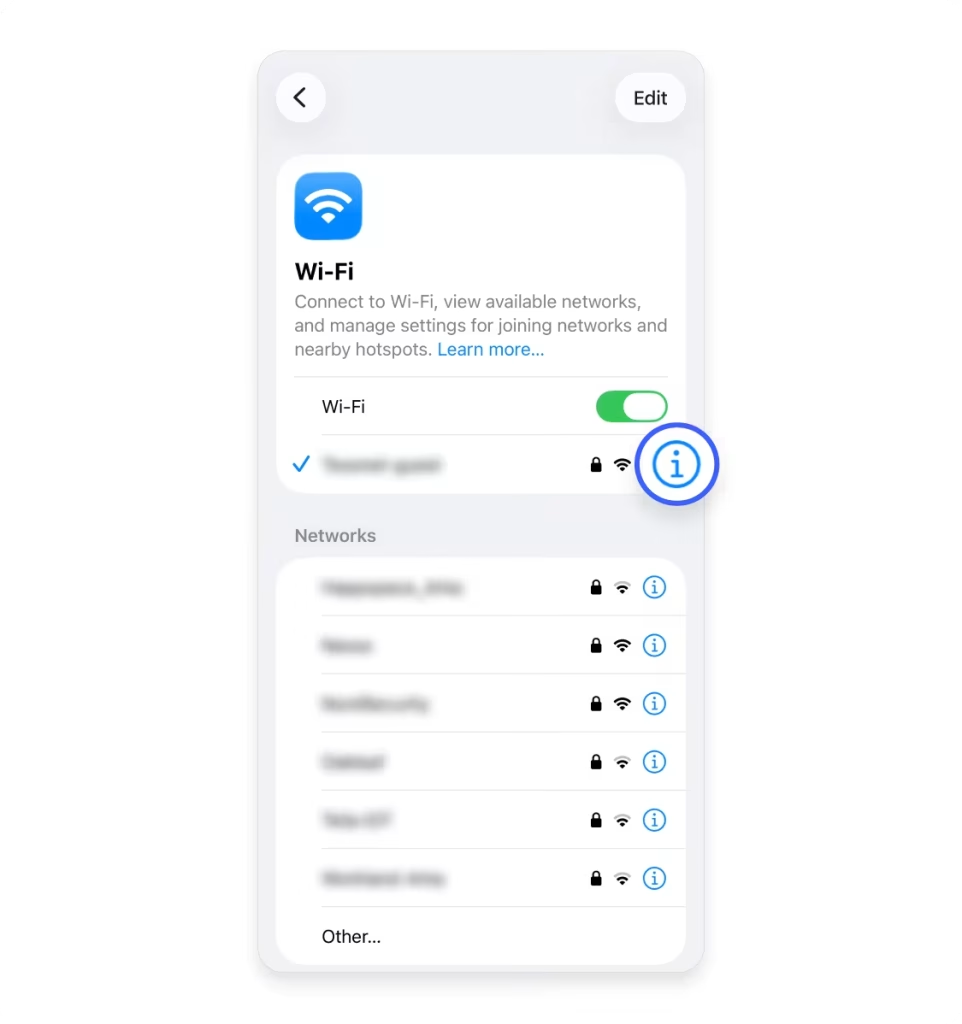
- iPhone or iPad: Go to Settings → Wi-Fi, tap the information icon beside your connected network, and find Router.
- Mac: Open System Settings → Wi-Fi → Details → TCP/IP and check Router.
The address displayed in these fields is usually your router’s local IP address. You can enter it into a web browser to open the router login page
What Is a Router IP Address?
A router IP address is a numerical address that identifies your router on a local network. It allows devices connected to your home network to communicate with the router and use its internet connection.
Most home routers use a private IPv4 address. Common examples include:
Your router may use a different address depending on its manufacturer, model, and network configuration.
The router’s local IP address is also commonly called the Default Gateway. When you find this address, you can enter it into your browser to access your router’s administration page.
How to Find Your Router IP Address on Windows
Windows provides a built-in way to find your router IP address through Command Prompt. You can use this method on Windows 11, Windows 10, and other recent Windows versions.
Method 1: Find Router IP Using Command Prompt
Follow these steps:
- Connect your Windows computer to your router using Wi-Fi or an Ethernet cable.
- Press Windows + R on your keyboard.
- Type
cmdand press Enter. - In Command Prompt, type
ipconfig. - Press Enter to display your network information.
- Find your active Wi-Fi or Ethernet adapter.
- Look for the Default Gateway entry.
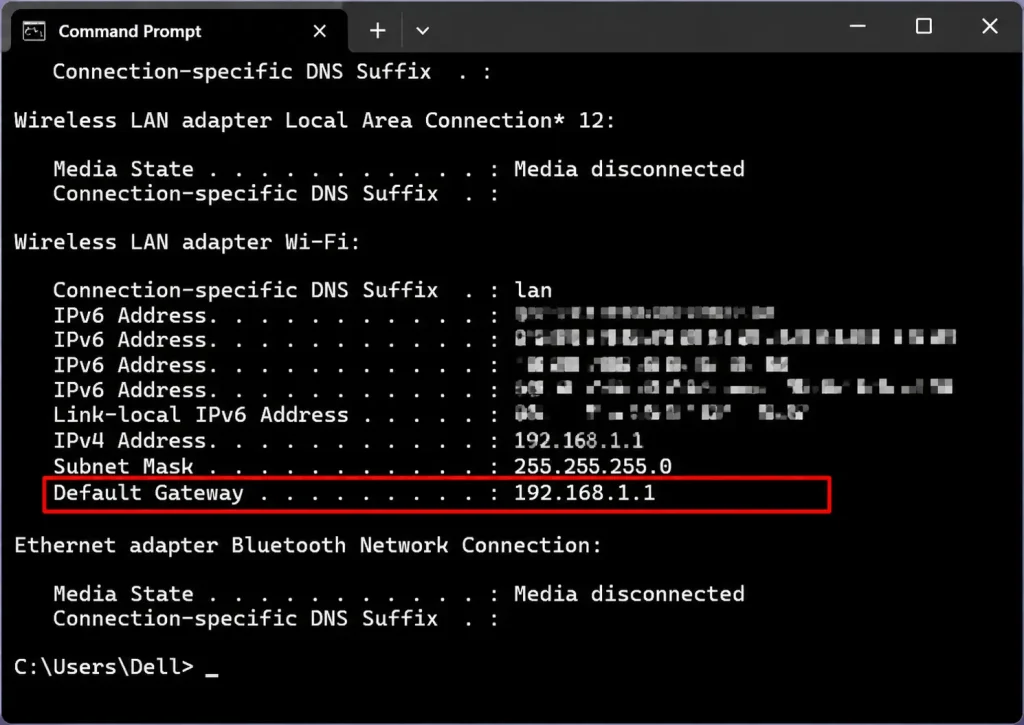
The number displayed beside Default Gateway is usually your router’s IP address.
For example, if the Default Gateway is 192.168.1.1, that is the address you can use to open your router’s login page.
Method 2: Find Router IP Through Windows Settings
You can also check your network details through Windows Settings.
- Open Settings on your computer.
- Select Network & Internet.
- Choose Wi-Fi or Ethernet, depending on your connection.
- Open the properties of your connected network.
- Find the network details and look for the Default Gateway or IPv4 gateway.
The displayed gateway address is generally your router’s local IP address.
Router Username and Password List
| Brand | Model | Protocol | Username | Password |
|---|
How to Find Your Router IP Address on Android
You can find your Wi-Fi router IP address directly from your Android phone. The exact menu names may vary depending on your device manufacturer and Android version.
Follow these steps:
- Open the Settings app on your Android phone.
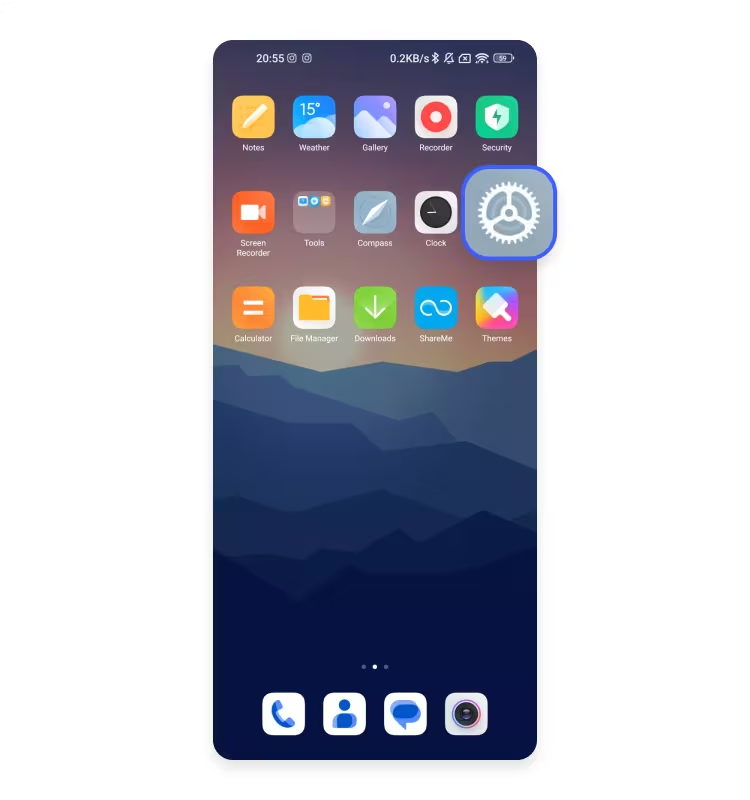
- Tap Network & Internet or Connections.
- Select Wi-Fi.
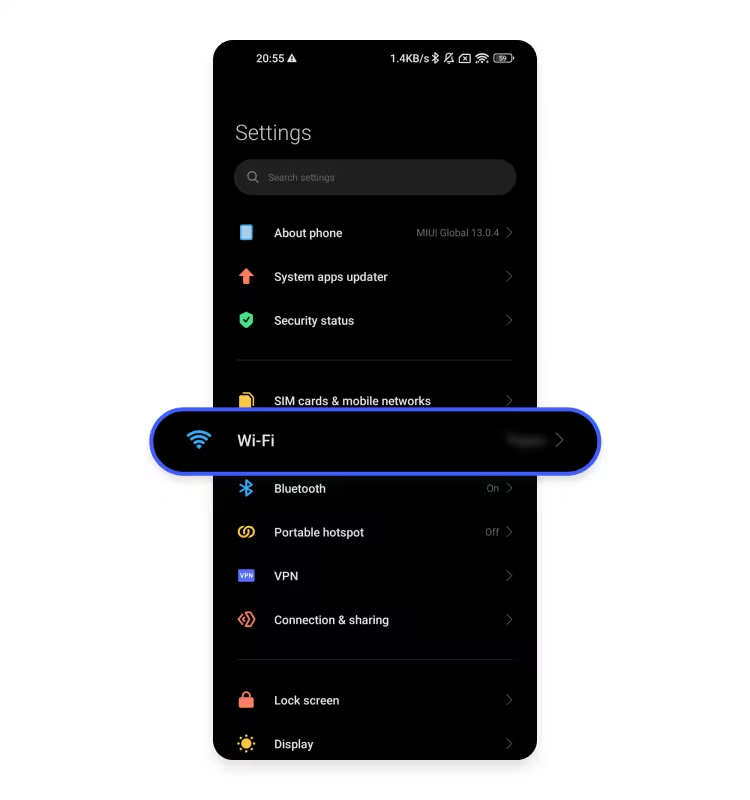
- Tap your currently connected Wi-Fi network.
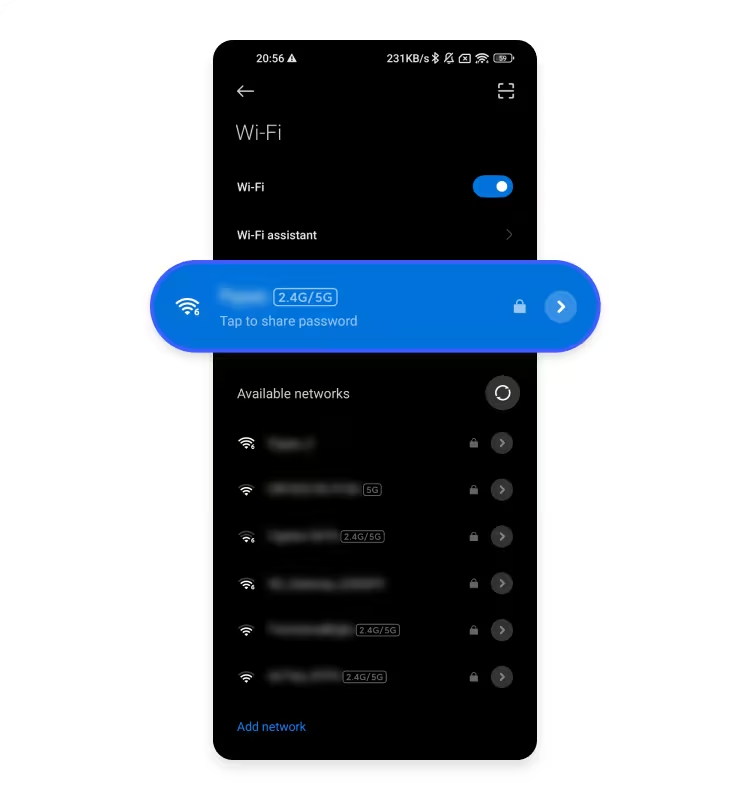
- Open the network details or advanced settings.
- Look for Gateway, Router, or a similar network information field.
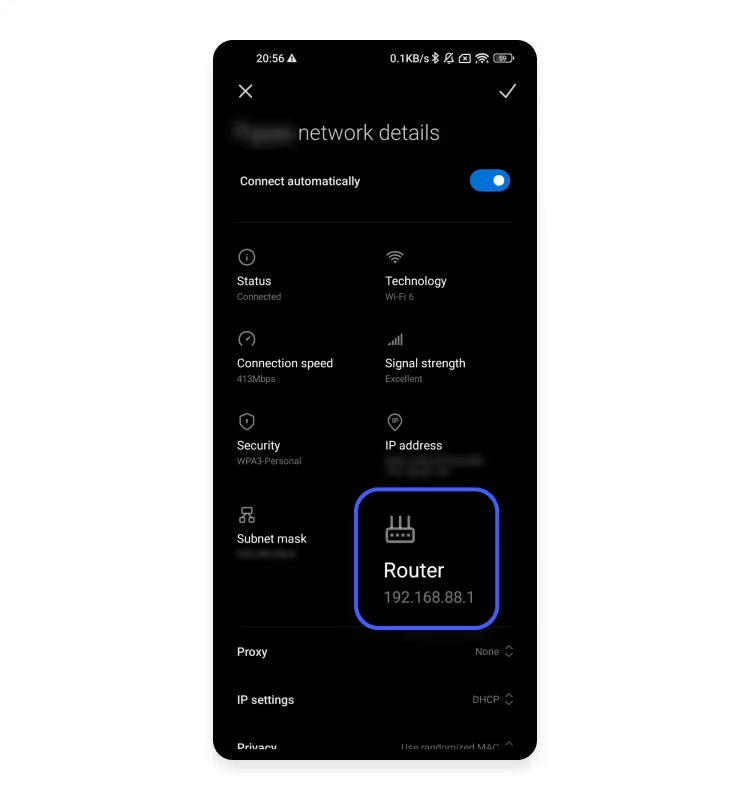
The address displayed beside Gateway or Router is usually your router’s IP address.
On some Android devices, you may need to tap the gear icon beside your connected Wi-Fi network or expand the network details to see the gateway information.
How to Find Your Router IP Address on iPhone or iPad
If you’re using an iPhone or iPad, you can find your router IP address through the Wi-Fi settings without installing an additional app.
- Open Settings on your iPhone or iPad.
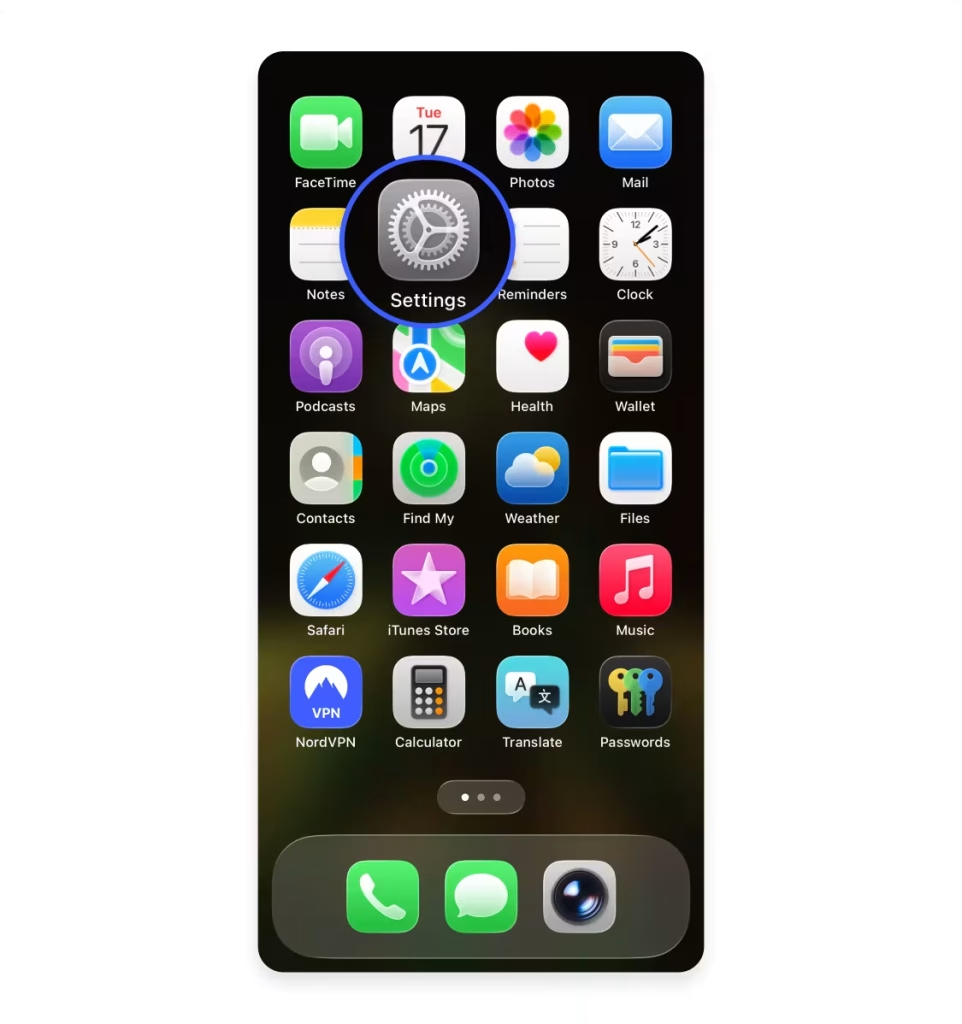
- Tap Wi-Fi.
- Make sure your device is connected to your home Wi-Fi network.
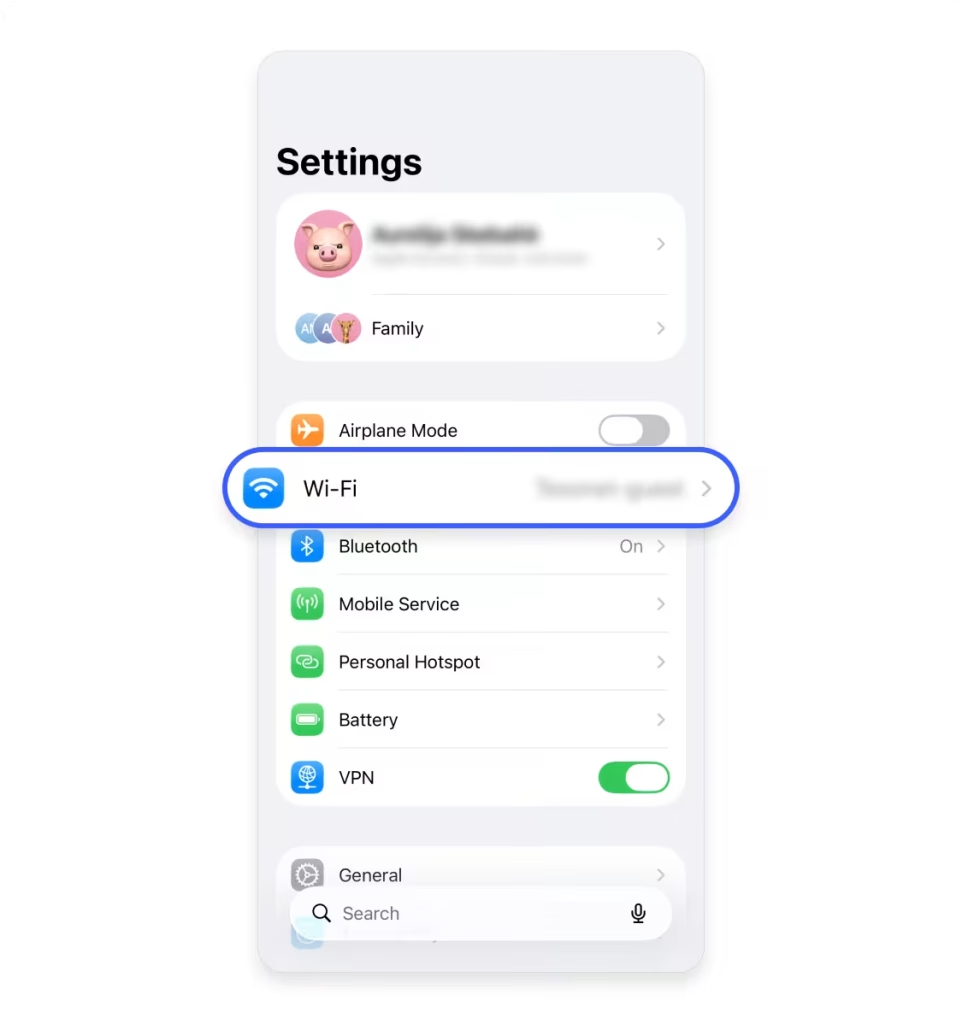
- Tap the information (i) icon beside the connected network.
- Scroll down to the IPv4 Address section.
- Find the field labeled Router.
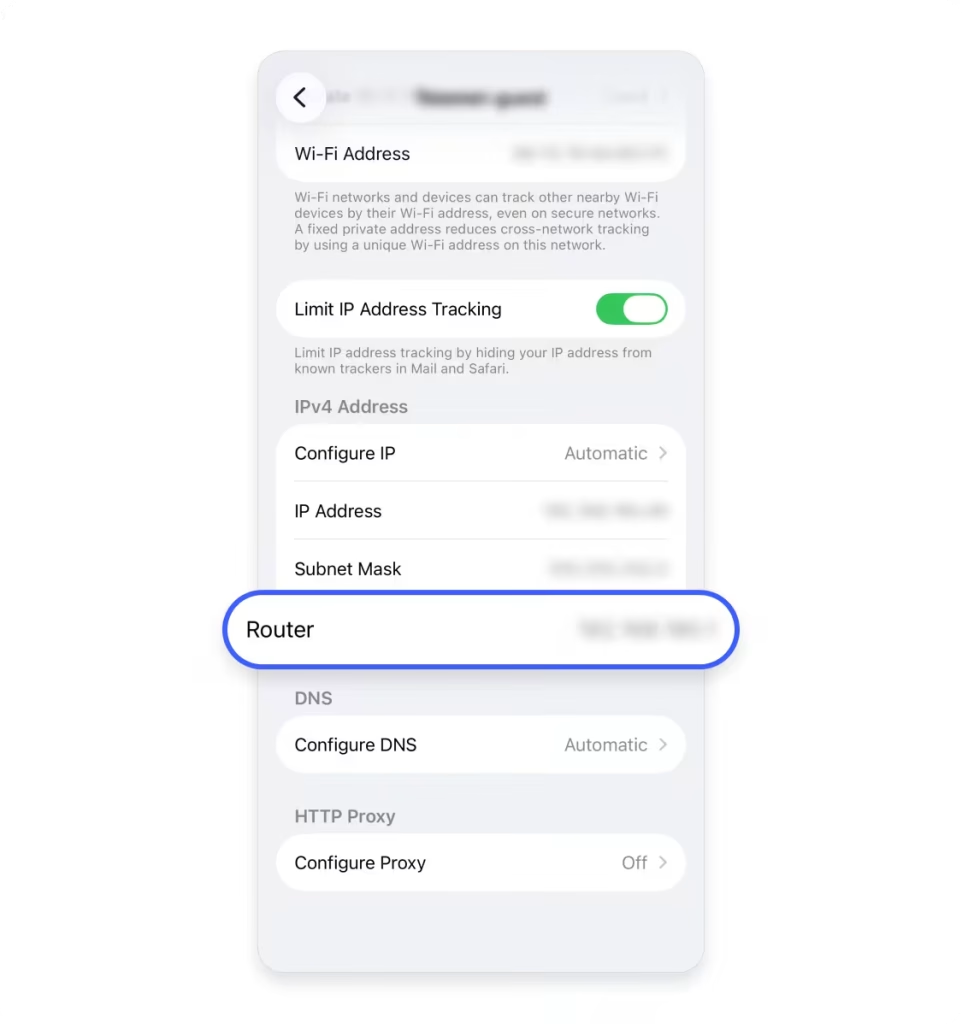
The number displayed beside Router is your router’s local IP address.
For example, if the Router field displays 192.168.0.1, you can enter http://192.168.0.1 in Safari to open the router login page.
How to Find Your Router IP Address on Mac
Mac users can find their router IP address through System Settings.
- Click the Apple menu in the top-left corner.
- Open System Settings.
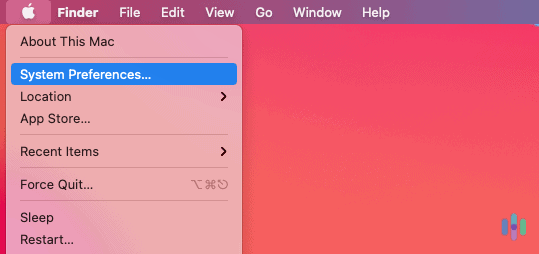
- Press “Network
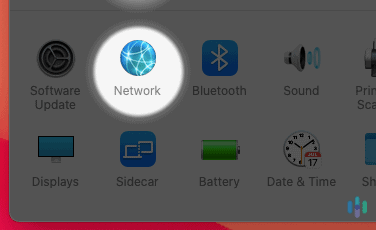
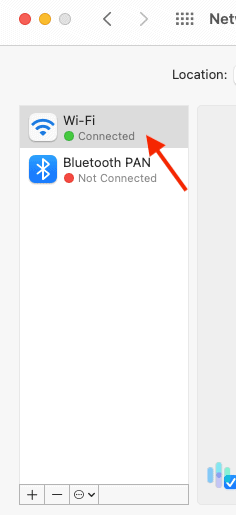
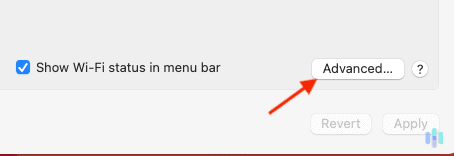
- If it’s not already selected, click your network connection on the left-hand side (most commonly Wi-Fi) and press “Advanced.”
- Press the TCP/IP tab. The router’s IP address displays here next to the word “Router.”
The address displayed beside Router is your local router IP address.
If your Mac is connected through an Ethernet cable, select the relevant Ethernet connection in Network settings and check its TCP/IP information instead.
How to Access the IP of Your WiFi Router
After finding your router IP address, you can use it to access the router’s administration page. This allows you to manage Wi-Fi settings, update passwords, and configure other network options.
Follow these steps:
- Connect your computer or smartphone to your router’s Wi-Fi network or Ethernet connection.
- Open a web browser such as Chrome, Firefox, Edge, or Safari.
- Type your router IP address into the browser’s address bar.
- Press Enter or Go.
- Wait for the router login page to load.
- Enter your administrator username and password.
For example, if your router’s IP address is 192.168.1.1, enter http://192.168.1.1 in the browser’s address bar.
Once the login page opens, use the administrator credentials provided during router setup or printed on the device label, if applicable.
Important: not every router uses this address, and there is no single username or password that works on every model. Use the address and credentials printed on your router label or provided in the official manual for your exact model.
Common Default Router IP Addresses
Many router manufacturers use common private IP addresses as their default gateway. However, the address can vary depending on the router model, manufacturer, and network configuration.
Here are some commonly used router IP addresses:
| Router IP Address | Common Use |
|---|---|
192.168.1.1 |
Common home router gateway |
192.168.0.1 |
Common default router gateway |
192.168.1.254 |
Used by some router models |
192.168.8.1 |
Used by some 4G and 5G routers |
192.168.2.1 |
Used by some router brands |
10.0.0.1 |
Used by some routers and network gateways |
These are examples, not universal addresses. Your device’s Default Gateway or Router field is the most reliable way to identify the correct address for your current network.
What to Do If You Cannot Find Your Router IP Address
If your router IP address doesn’t appear in your network settings, or the displayed address doesn’t open the login page, try the following solutions.
1. Check Your Network Connection
Make sure your device is connected to the correct Wi-Fi network or router through Ethernet. If you’re using mobile data or a disconnected network, the router gateway may not appear.
2. Check the Active Network Adapter
On Windows, make sure you’re checking the Default Gateway under the adapter you’re currently using. An inactive Wi-Fi or Ethernet adapter may show outdated or irrelevant information.
3. Restart Your Router
Turn off your router, wait a short while, and turn it back on. Allow the device to reconnect to the internet before checking the gateway address again.
4. Check the Router Label
Some routers have their default IP address printed on a label attached to the back or bottom of the device. You can also check the manufacturer’s manual for the default gateway.
5. Check Whether the Router Uses a Different Gateway
Your router’s local IP address may have been changed during setup. If so, common addresses such as 192.168.1.1 or 192.168.0.1 may not work.
Check the current gateway in your device’s network settings instead of repeatedly trying random IP addresses.
6. Disable VPN Temporarily
A VPN or certain network configurations can affect how your device connects to local network resources. If you cannot reach the router’s login page, temporarily disconnect your VPN and try again.
Frequently Asked Questions
How do I find my router IP address quickly?
On Windows, open Command Prompt, type ipconfig, and check the Default Gateway entry. On an iPhone, open Wi-Fi settings, tap the information icon beside your connected network, and check the Router field.
What is the most common router IP address?
192.168.1.1 and 192.168.0.1 are two commonly used router IP addresses. However, not every router uses these addresses. Check your device’s network settings to identify the correct gateway.
Is my router IP address the same as my public IP address?
No. Your router’s local IP address is used within your private network, while your public IP address identifies your internet connection to external websites and online services. These addresses serve different purposes.
Can I find my router IP address without a computer?
Yes. You can find it using an Android phone, iPhone, or iPad. Open your Wi-Fi settings, select your connected network, and look for the Gateway or Router field.
Why is my router IP address not opening?
You may be using the wrong gateway address, connected to a different network, or entering the IP address incorrectly. Check the Default Gateway on your device and enter the complete address into your browser’s address bar.
Can I change my router IP address?
Many routers allow administrators to change the local LAN IP address through the router settings. However, changing it can affect connected devices and the address used to access the administration page. Follow your router manufacturer’s instructions before making changes.
Do I need an internet connection to access my router IP address?
You usually don’t need an active internet connection to open your router’s local administration page. However, your device must be connected to the router’s local network through Wi-Fi or Ethernet.
Conclusion
Finding your router IP address is simple once you know where to look. Windows users can check the Default Gateway through Command Prompt, while Android, iPhone, and Mac users can find the address in their Wi-Fi or network settings.
After identifying the correct gateway, enter it into your browser to access your router’s login page and manage your network settings. Always use the actual address displayed by your connected device instead of assuming every router uses the same default IP address.

Hi, I’m James. I’ve spent 10 to 11 years working hands-on with home networking setups and router configurations, helping everyday users troubleshoot and get online quickly. I created 19216811-login.com to share clear, tested guides for logging into and configuring your router, based on that real-world experience. My goal is to make router setup simple for everyone, one guide at a time.