Change Wi-Fi Password on Any Router
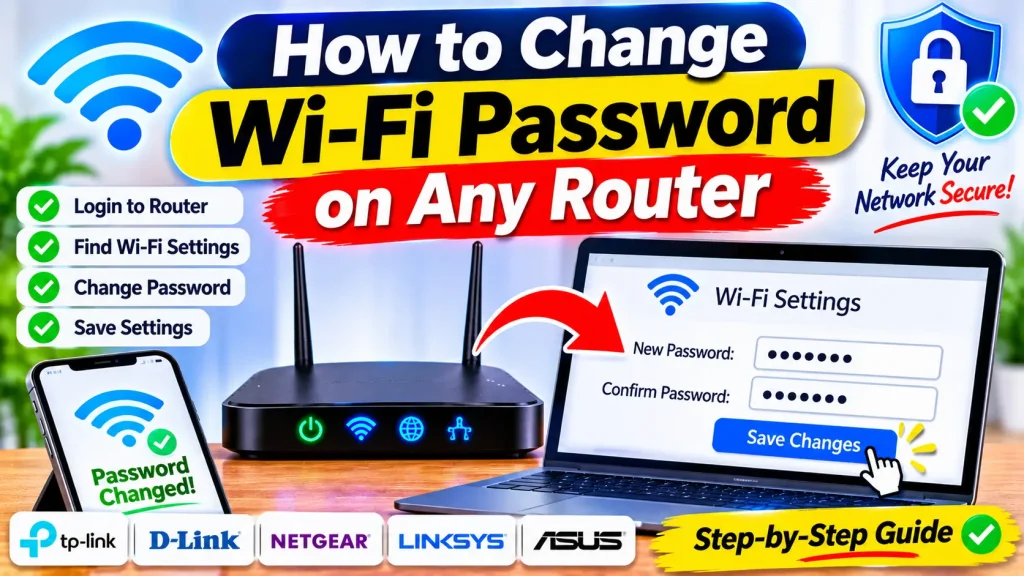
Changing your Wi-Fi password helps protect your internet connection and prevent unknown devices from accessing your network. You can change it through your router’s admin panel using a phone, laptop, or computer.
In this guide, you will learn how to change your Wi-Fi password on different routers, including TP-Link, NETGEAR, ASUS, D-Link, and other popular brands.
Quick Answer Box
How to Change Wi-Fi Password
Follow these simple steps to change your Wi-Fi password:
- Connect your phone or computer to your router’s Wi-Fi network.
- Open a browser and enter your router’s IP address, such as
192.168.1.1or192.168.0.1. - Enter your router administrator username and password.
- Open Wireless Settings or Wi-Fi Settings.
- Find the Wi-Fi Password, Wireless Password, or Security Key field.
- Enter your new password and click Save or Apply.
- Reconnect your devices using the new password.
1. Log In to Your Router
First, connect your device to the router using Wi-Fi or an Ethernet cable.
Open your web browser and enter your router’s IP address in the address bar.
Common router login addresses include:
192.168.1.1192.168.0.1192.168.1.254192.168.8.1
If these addresses do not work, check your router’s label or find its Default Gateway on your connected device.
Enter your administrator login details to access the router settings.
2. Open Wireless or Wi-Fi Settings
After logging in, look for one of these options in the router dashboard:
- Wireless
- Wireless Settings
- Wi-Fi Settings
- WLAN
- Network Settings
The menu name depends on your router brand and model.
Open the relevant section to find your current Wi-Fi network settings.
3. Change Your Wi-Fi Password
Find the password field. It may be called:
- Wi-Fi Password
- Wireless Password
- WPA Pre-Shared Key
- Security Key
- Network Key
Remove the old password and enter your new one.
For better security, choose a password that:
- Contains at least 12 characters.
- Uses a mix of letters, numbers, and symbols.
- Is difficult for others to guess.
- Is not reused from another account.
If your router has separate 2.4 GHz and 5 GHz networks, check whether each network has its own password.
4. Save Your New Password
After entering the new password, click Save, Apply, or the equivalent option.
Your router may restart its Wi-Fi connection. All connected devices may disconnect automatically.
Reconnect your phone, laptop, smart TV, and other devices using the new Wi-Fi password.
5. How to Change Wi-Fi Password on Different Routers
The exact menu names vary by model, but these are common places to find wireless password settings.
TP-Link Router
- Open the TP-Link router login page.
- Enter your administrator credentials.
- Go to Wireless or Wireless Settings.
- Find the Wireless Password field.
- Enter your new password and save the settings.
NETGEAR Router
- Log in to your NETGEAR router.
- Open Wireless Settings.
- Find the password or security key field.
- Enter your new Wi-Fi password.
- Click Apply to save.
ASUS Router
- Open the ASUS router admin panel.
- Go to Wireless.
- Select the Wi-Fi band you want to update.
- Find the WPA Pre-Shared Key field.
- Enter your new password and apply the changes.
D-Link Router
- Log in to your D-Link router.
- Open Wireless Settings or Wi-Fi Settings.
- Find the wireless security or password option.
- Enter your new password.
- Save the changes.
Huawei Router
- Open your Huawei router login page.
- Enter your administrator details.
- Find the WLAN or Wi-Fi settings.
- Locate the Wi-Fi password field.
- Enter your new password and save it.
6. How to Change Wi-Fi Password Using a Phone
You can change your Wi-Fi password using an Android phone or iPhone without a computer.
- Connect your phone to your router’s Wi-Fi.
- Open Chrome, Safari, or another browser.
- Enter your router’s IP address.
- Log in using your administrator credentials.
- Open Wireless or Wi-Fi Settings.
- Change the password and save it.
After saving, reconnect your phone using the new password.
7. What to Do If You Cannot Change Your Wi-Fi Password?
If you cannot update your Wi-Fi password, try these solutions:
- Login page not opening: Check your router’s correct IP address.
- Incorrect admin password: Check the router label or contact your ISP.
- Settings not saving: Restart the router and try again.
- Cannot access router settings: Make sure your device is connected to the correct Wi-Fi network.
- Password rejected: Use a longer password with supported characters.
Avoid performing a factory reset unless necessary. It can erase your Wi-Fi settings and other custom configurations.
Frequently Asked Questions
Can I change my Wi-Fi password from my phone?
Yes. Connect your phone to your router’s Wi-Fi, open its admin IP address in a browser, log in, and update the password under Wireless or Wi-Fi Settings.
Does changing my Wi-Fi password disconnect other devices?
Yes. Devices connected with the old password will need to reconnect using your new password.
How often should I change my Wi-Fi password?
Change it if you suspect someone else is using your network, if you have shared it with people who no longer need access, or if it is weak or compromised.
What is the difference between a Wi-Fi password and a router admin password?
A Wi-Fi password connects devices to your wireless network. A router admin password allows you to access and manage router settings. They are separate credentials.
What should I do if I forget my new Wi-Fi password?
If you can still access the router admin panel through an Ethernet connection or another connected device, open Wi-Fi settings and set a new password. Otherwise, check your router’s recovery instructions or contact your ISP.
Conclusion
Changing your Wi-Fi password is a simple way to improve your home network security. Log in to your router, open Wireless or Wi-Fi Settings, enter a strong new password, and save the changes.
Remember to reconnect all your devices using the updated password. If you cannot access your router dashboard, check your router IP address and administrator login details first.

Hi, I’m James. I’ve spent 10 to 11 years working hands-on with home networking setups and router configurations, helping everyday users troubleshoot and get online quickly. I created 19216811-login.com to share clear, tested guides for logging into and configuring your router, based on that real-world experience. My goal is to make router setup simple for everyone, one guide at a time.