192.168.1.1 Login Admin
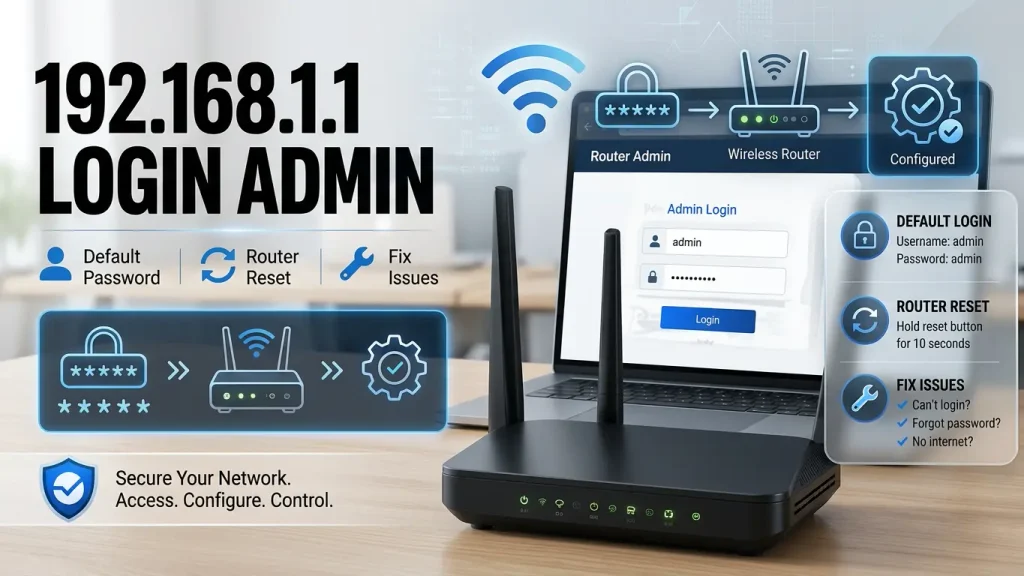
192.168.1.1 is a private IPv4 address that some routers use as their local gateway and administration address. When your device is connected to that router, entering the address in a browser may open the router’s sign-in page, where you can manage Wi-Fi, security, and other network settings.
Important: not every router uses this address, and there is no single username or password that works on every model. Use the address and credentials printed on your router label or provided in the official manual for your exact model.
Find Your Router Login
Select your brand, we’ll open the right guide
Not sure which IP or link to use? Select your router brand below. You will see its default IP and login address, and the button opens our step-by-step login guide in a new tab.
Default IP
192.168.1.1
Router Login Address
192.168.1.1
The guide opens on any device. Your router’s own login page opens only when your device is connected to that router’s Wi-Fi or cable.
How do I log into 192.168.1.1?
- Connect your device to the router’s Wi-Fi or Ethernet.
- Open a web browser and type
http://192.168.1.1in the address bar (not the search bar). - Press Enter a login prompt will appear.
- Enter the default username and password (commonly
admin/adminor printed on the router’s label). - Click Login to access the admin dashboard.
If the page doesn’t load, your router’s actual gateway IP might be different (like 192.168.0.1 or 192.168.1.254) — check the label on your router or your device’s network settings.
| Login detail | What to use |
|---|---|
| Router address | http://192.168.1.1, only if this is your router’s gateway |
| Connection | Your own router’s Wi-Fi or an Ethernet cable |
| Username | The username on the router label/manual, or the one set during setup |
| Password | The admin password on the label or the password created during setup |
| If the page does not open | Find the Default Gateway/Router address on your connected device |
How to Log In to 192.168.1.1
Follow these steps from a phone, tablet, laptop, or desktop connected to the router you want to manage.
Step 1 :Connect to your router
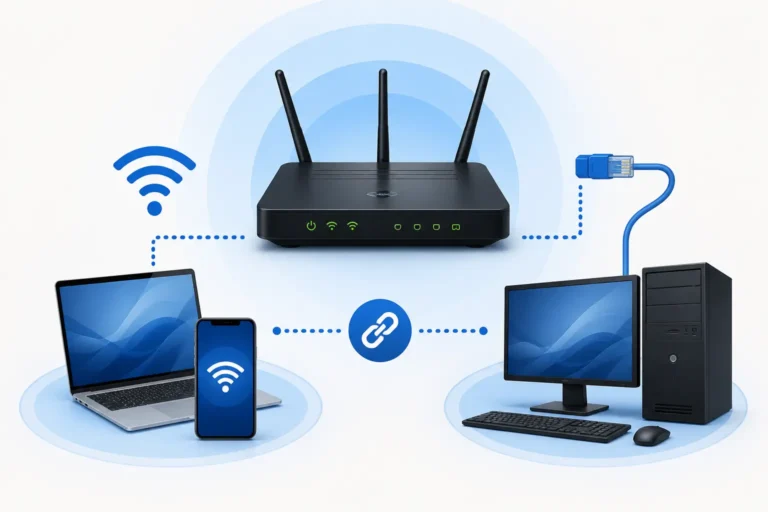
Connect to your router. Join its Wi-Fi network or connect your computer to a LAN port with an Ethernet cable. Mobile data alone will not connect you to the router’s local administration page.
Step 2 :Open a browser
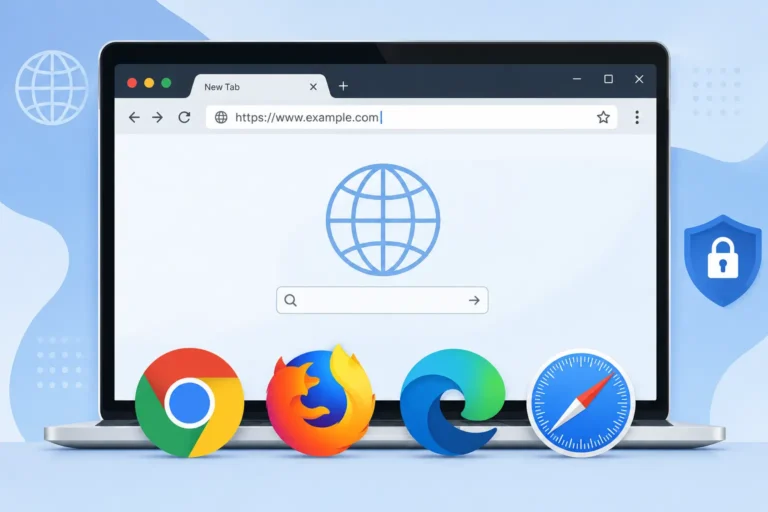
Open a browser. Chrome, Safari, Firefox, or Edge can work. You do not need to search Google for the address.
Step 3 :Type the IP Address Correctly
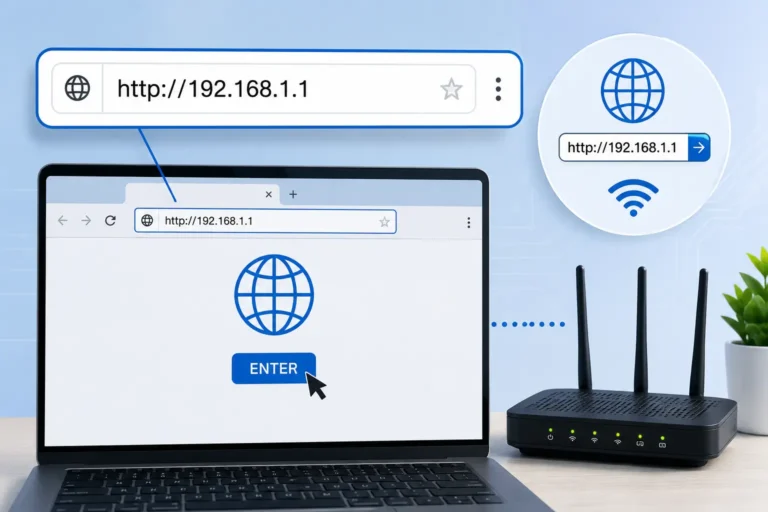
Type http://192.168.1.1 into the browser’s address bar at the top of the window, then press Enter. Check that the dots are in the right places and that you have not typed the address into the search box.
Step 4 :Enter Login Credentials
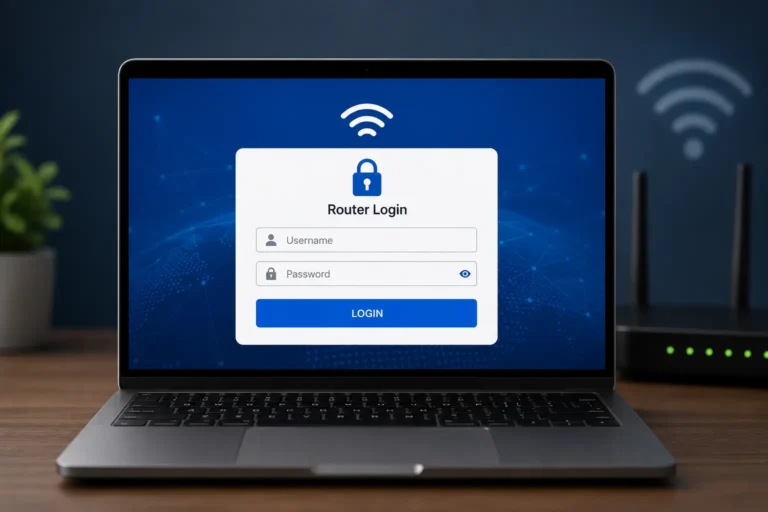
Wait for the router sign-in screen. If it asks for a username and password, use the credentials for your specific router. Some models use a device-specific password or require a password to be created during first setup.
Step 5 :Access the Dashboard
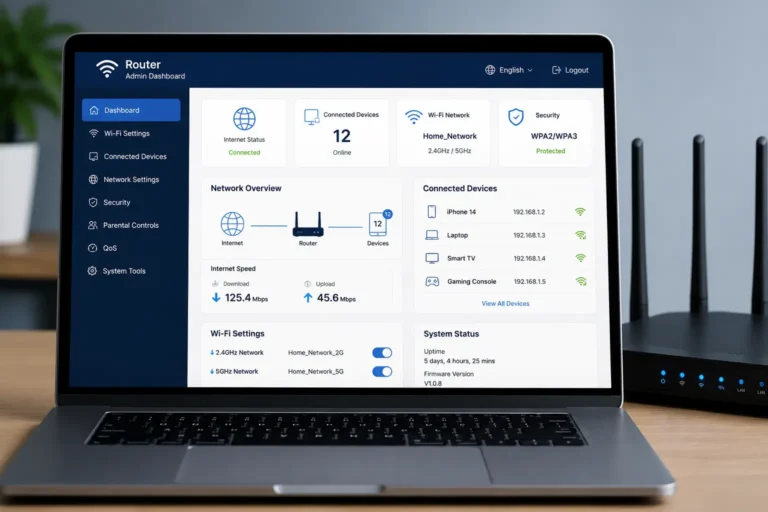
Sign in and open the dashboard. Menu names vary by manufacturer. Look for Wireless, Wi-Fi, Network, Security, Administration, or System settings, depending on what you need to change.
Step 6 :Make Your Changes and Save
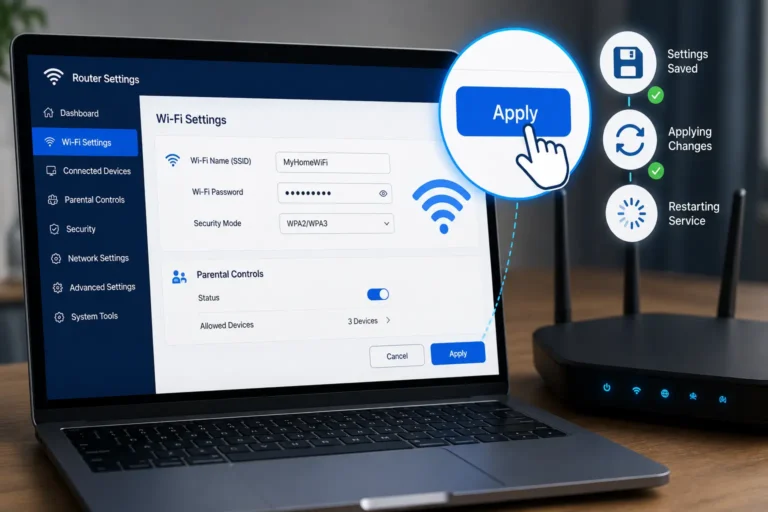
Make one change at a time and select Save, Apply, or the equivalent option. A Wi-Fi change may disconnect your device, so reconnect using the new network details if prompted.
If the address does not open, do not keep guessing passwords or try random login pages. First confirm that this is your router’s correct gateway address using the instructions below.
What Is 192.168.1.1?
192.168.1.1 is an IPv4 address from the private 192.168.0.0/16 range. Private addresses are intended for use inside local networks and can be reused by many homes and businesses because they are not globally unique public addresses. The Internet Assigned Numbers Authority (IANA) lists 192.168.0.0 through 192.168.255.255 as private-use space.
A router may use 192.168.1.1 as its local address, also called a gateway address. Devices on the same local network can use that address to reach the router’s management interface when the manufacturer has configured it that way. The address itself is not a website hosted on the public internet, and it does not reveal your Wi-Fi password.
The address is common, but it is not universal. A router’s default address can differ by brand, model, internet provider, firmware, or settings chosen during installation. If this one does not work, find the gateway address your device is actually using rather than assuming the router is faulty.
192.168.1.1 Username and Password
There is no universal admin login that is safe to assume for every router. Older models may have used simple defaults, while newer devices may use a unique password printed on the product label or ask the owner to create an administrator password during setup. Internet providers can also supply customized equipment.
Where to find the correct credentials
- Check the label on the back, underside, or side of the router. Look for terms such as Admin Password, Device Password, Web Password, or Login Password. The exact label depends on the model.
- Read the quick-start card or official manual for the exact model and hardware revision.
- Check the setup notes from your internet provider if the router was installed by an ISP technician.
- If you previously changed the admin password, use the current password you created. The original default may no longer work.
- Use the manufacturer’s official support site if the label and manual do not resolve the issue.
Do not confuse the router administrator password with the Wi-Fi password. The Wi-Fi password connects devices to the wireless network. The administrator password protects access to settings. They may be different, and changing one does not necessarily change the other.
Forgot 192.168.1.1 Admin Password
If you forget your router admin password, use the Reset button to restore factory settings.
- Locate the small Reset button on the back or bottom of your router.
- Keep the router powered on.
- Press and hold the Reset button for 10–15 seconds using a paperclip.
- Release the button and wait for the router to restart.
- Connect to your router and visit
http://192.168.1.1. - Log in using the default credentials printed on the router label or provided in its manual.
Note: A factory reset erases custom settings, including your Wi-Fi name and password. Reset your router only as a last resort.
Which Router Brands Use 192.168.1.1?
Some routers from TP-Link, NETGEAR, ASUS, Linksys, D-Link, and Tenda may use 192.168.1.1 as their default login address. However, the correct address depends on the router model and its configuration. A brand name alone does not confirm the correct login IP.
For example, NETGEAR supports router access through routerlogin.net or http://192.168.1.1 on compatible models. TP-Link also documents 192.168.1.1 as a login option for supported routers. You must connect to your router’s local network and follow the instructions for your exact model.
| Brand | Default IP | Username | Password |
|---|---|---|---|
| TP-Link | 192.168.1.1 / 192.168.0.1 | admin | admin |
| Netgear | 192.168.1.1 | admin | password |
| Asus | 192.168.1.1 | admin | admin |
| Linksys | 192.168.1.1 | admin | admin |
| D-Link | 192.168.0.1 / 192.168.1.1 | admin | (leave blank) |
| Tenda | 192.168.0.1 | admin | admin |
192.168.1.1 Not Working? Try These Fixes
If the login page will not load, work through these checks in order. They help identify whether the issue is the address, your connection, the browser, or the router itself.
1. Confirm you are connected to your own router
Connect to the router’s Wi-Fi or use an Ethernet cable. If you are on mobile data, a guest network, a neighbour’s Wi-Fi, or a different router, the address may not lead to the device you want to manage. Turn off mobile data temporarily if your phone keeps switching away from Wi-Fi.
2. Check the address carefully
Type http://192.168.1.1 directly into the address bar. Common typing mistakes include replacing a dot with a letter, adding extra spaces, or entering the address into a search field. The strings “192.168.l.1” and “192.168.11” are not the same address as 192.168.1.1.
3. Find the correct gateway address
Your router may use another local address, or someone may have changed it. Use the device-specific steps in the next section. The value shown as Default Gateway or Router is usually the best starting point for reaching the local router interface.
4. Try another browser or device
Open a private or incognito window, try a different browser, or use another device connected to the same network. If the page loads on one device but not another, check the affected device’s connection, VPN, proxy, and browser settings.
5. Restart the router safely
If the correct address still does not respond, save any work and restart the router using its normal power procedure. Wait for the indicator lights and connection to return, then try again. Do not repeatedly unplug the router while it is installing a firmware update.
6. Check cables and router status
For a wired connection, check that the Ethernet cable is firmly connected to a LAN port and your device. If Wi-Fi is unavailable on every device, investigate the router’s power and connection status before troubleshooting the admin page.
7. Use factory reset only as a last resort
A factory reset may restore access if you have forgotten the administrator password, but it also erases custom settings. Depending on the router, you may lose the Wi-Fi name and password, ISP settings, guest network, port forwarding, parental controls, and other configuration. Check the manufacturer’s instructions first and make sure you can set the router up again. Do not reset an ISP-managed router without checking with your provider.
How to Find Your Router’s IP Address
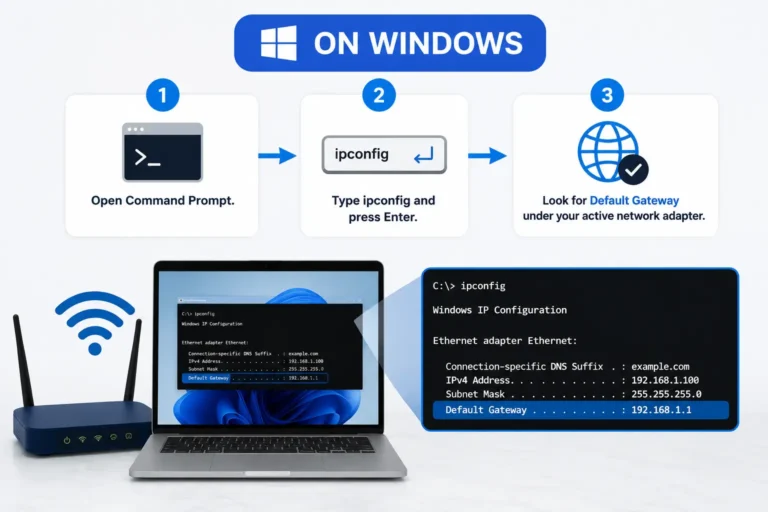
If 192.168.1.1 does not open, find the gateway on the device currently connected to the router. Menu names can vary by operating-system version.
Windows
Connect to your router. Join its Wi-Fi network or connect your computer to a LAN port with an Ethernet cable. Mobile data alone will not connect you to the router’s local administration page.
macOS
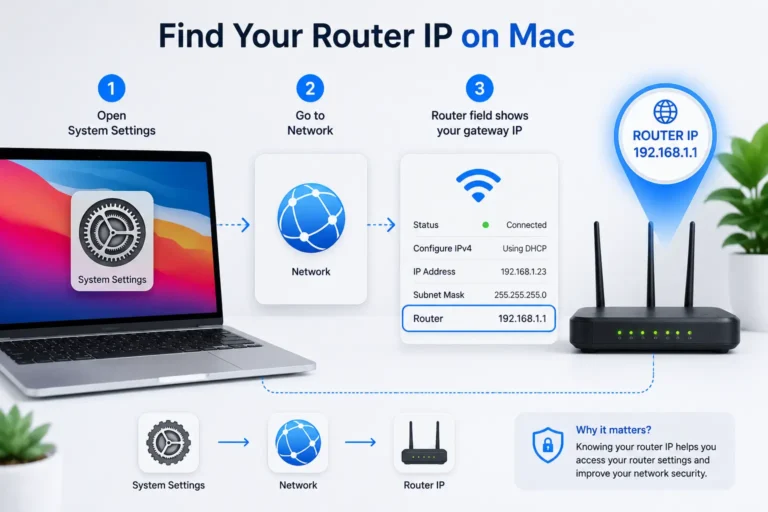
- Open System Settings, choose Network, and select the active Wi-Fi or Ethernet connection.
- Open its Details or TCP/IP settings and look for Router.
- Enter that address in your browser.
iPhone or iPad
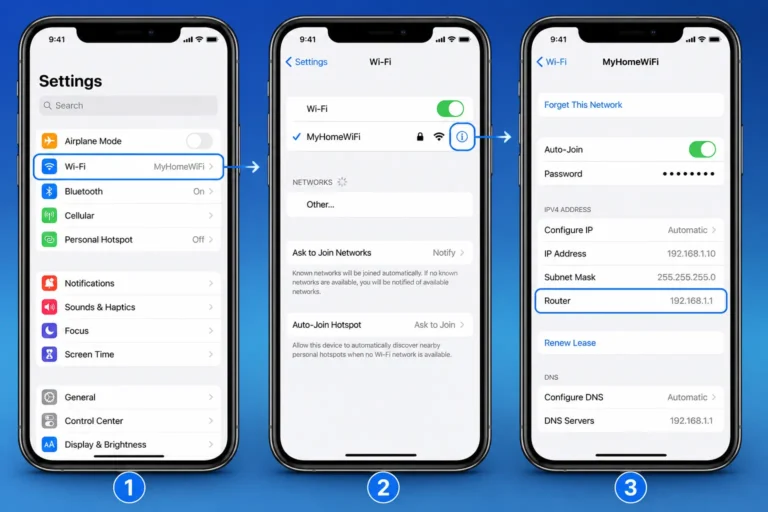
- Open Settings, tap Wi-Fi, then tap the information icon beside the connected network.
- Find the Router field.
- Use that address while your device remains connected to the same network.
Android
Open Settings and go to Wi-Fi or Network & Internet. Select the connected network and look for Gateway, Router, or network details. The wording differs between Android versions and phone manufacturers. If the address is not shown, check the router label or use another connected device.
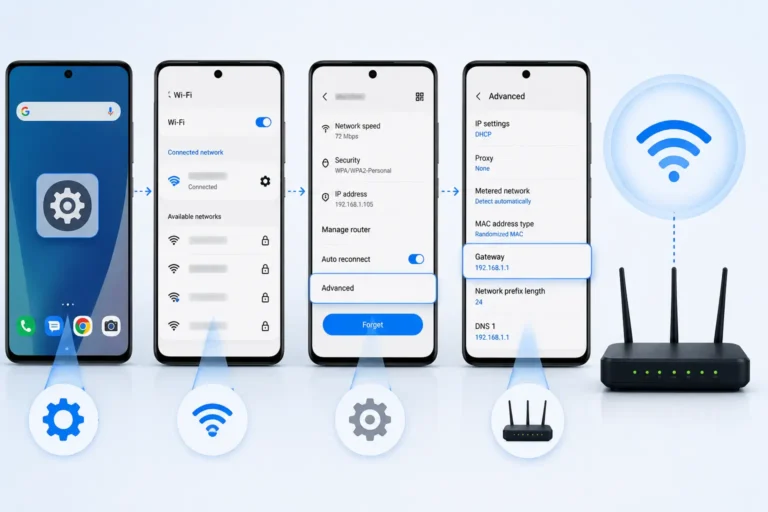
If the gateway field is blank or the instructions do not match your device, consult the operating system’s current help documentation or the device manufacturer.
Other Common Router Login IP Addresses
A different local gateway may be correct for your router. These addresses are worth checking only if they match your router label, manual, or the gateway shown on your connected device.
| Address | Suggested site page / use |
| 192.168.0.1 | Guide for routers using 192.168.0.1 |
| 192.168.1.254 | Guide for routers using 192.168.1.254 |
| 192.168.8.1 | Guide for routers using 192.168.8.1 |
| 192.168.2.1 | Guide for routers using 192.168.2.1 |
| 192.168.100.1 | Guide for routers using 192.168.100.1 |
| 192.168.10.1 | Guide for routers using 192.168.10.1 |
Do not assume that the first alternative will work. Router addresses can be changed, and several devices may use the same private address on separate networks.
What Can You Change in the Router Admin Panel?
The options available depend on your router model, firmware, and internet provider. Common settings include:
Wi-Fi name and password
Change the network name (SSID) and Wi-Fi password. Use a strong, unique password and save the change. Devices may disconnect and need to reconnect using the updated credentials.
Wireless security
Choose a modern security option supported by your devices and router. WPA3 is preferred when available; WPA2-AES is a common fallback for compatible equipment. Avoid outdated WEP security. Menu labels and available choices differ by model.
Connected devices
The connected-device list can help you identify devices using your network. Names may be unclear or generic, so do not assume an unfamiliar label automatically means an intruder. Compare device details with phones, computers, televisions, cameras, and smart-home products in your home.
Guest network and parental controls
If supported, a guest network can provide internet access to visitors without sharing your main Wi-Fi password. Parental-control and access-scheduling features vary, so check what your router actually supports.
Firmware and administration
Some dashboards offer firmware updates, administrator-password changes, backup settings, and remote-management controls. Install firmware only through the router’s built-in update process or the manufacturer’s official instructions. Do not interrupt power during an update.
Is It Safe to Use 192.168.1.1?
Using a private router address is a normal way to manage your own local network. The address alone is not a security guarantee, however. Safety depends on connecting to the correct router, using the genuine local administration page, protecting the administrator credentials, and choosing secure network settings.
- Only sign in to a router you own or are explicitly authorised to manage.
- Change a default administrator password during setup if the manufacturer recommends it, and use a unique password that is different from your Wi-Fi password.
- Do not share your admin password, Wi-Fi password, recovery codes, or screenshots that expose them.
- Use official manufacturer support pages for model-specific instructions and downloads.
- Keep firmware updated through the router’s supported update process.
- Leave remote administration disabled unless you understand why you need it and how to secure it.
- A private IP address such as 192.168.1.1 is not normally reachable directly from the public internet. That does not mean a router is automatically secure: weak passwords, outdated firmware, unsafe settings, or an exposed remote-management feature can still create risk.
Frequently Asked Questions
What is the default password for a router at 192.168.1.1?
There is no universal password for this address. Check the router label, official manual, or setup information from your internet provider. Some models use a unique password, while others require the owner to create one during setup.
Why will the router login page not open?
Your device may not be connected to the router, the router may use a different gateway address, or the address may have been typed incorrectly. Check the connection, enter the address in the browser bar, and find the active network’s Default Gateway or Router address.
Is the router admin password the same as the Wi-Fi password?
Not necessarily. The Wi-Fi password joins devices to the wireless network. The administrator password controls access to router settings. They can be different and should be protected separately.
How can I change my Wi-Fi password?
Sign in to your router’s local dashboard, open the Wireless or Wi-Fi section, update the password, and save the change. The exact menu depends on the model. Reconnect your devices using the new password.
What should I do if I forgot my router administrator password?
Check the official recovery instructions for your exact model first. Some routers support password recovery. If a factory reset is the only option, understand that it erases custom settings and may require your ISP details to reconnect.
Final Tips for Secure Router Login
Start by confirming that your device is connected to your own router and that you are using the correct local gateway. Enter the address in your browser’s address bar, sign in with the credentials for your exact model, and make only the changes you need. If the login page fails, find the gateway shown on your device before trying alternatives. Change default administrator credentials when appropriate, use modern Wi-Fi security, and avoid a factory reset until you understand what settings it will erase.
For further help, use the site’s dedicated guides for other router IP addresses, brand-specific login steps, finding your router IP, forgotten admin passwords, and changing a Wi-Fi password.

Hi, I’m James. I’ve spent 10 to 11 years working hands-on with home networking setups and router configurations, helping everyday users troubleshoot and get online quickly. I created 19216811-login.com to share clear, tested guides for logging into and configuring your router, based on that real-world experience. My goal is to make router setup simple for everyone, one guide at a time.