Router Login Not Working
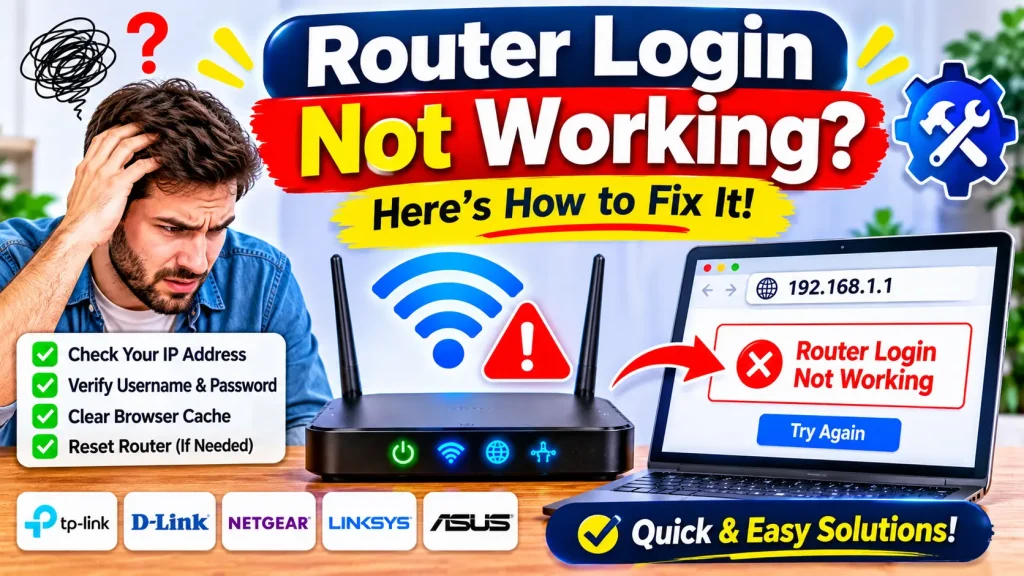
Are you unable to access your router login page? If your router login is not working, the problem may be caused by an incorrect IP address, a Wi-Fi connection issue, a wrong password, or a browser error.
Whether you are using a TP-Link, Huawei, NETGEAR, ASUS, or another router, these simple solutions can help you access your router settings again.
Quick Answer Box
How to Fix Router Login Not Working
If your router login page is not opening, try these steps:
- Connect your device to your router’s Wi-Fi network.
- Check your router’s correct IP address.
- Enter the IP address directly into your browser’s address bar.
- Restart your router and device.
- Try another browser or clear your browser cache.
- Check your router’s admin username and password.
- Temporarily disable any VPN connection.
- Contact your internet service provider if the problem continues.
1. Check Your Router IP Address
An incorrect IP address is one of the most common reasons a router login page does not open.
Common router IP addresses include:
192.168.1.1192.168.0.1192.168.1.254192.168.8.1192.168.100.1
However, your router may use a different address.
To find the correct IP address, check the Default Gateway on your connected device. You can also check your router’s label or user manual.
If your router IP address is not working in the browser, make sure you are using the correct gateway address.
2. Make Sure You Are Connected to the Router
Your device must be connected to the router you want to access.
Check the following:
- Connect to the correct Wi-Fi network.
- Turn off mobile data temporarily when using a phone.
- Disconnect from other Wi-Fi networks.
- If possible, connect your computer using an Ethernet cable.
If you are connected to a different network, the router login page may not open.
3. Enter the IP Address Correctly
Open Chrome, Firefox, Safari, or another browser and enter your router IP address directly into the address bar.
For example:
Do not type the IP address into Google or another search engine. Also, avoid adding unnecessary spaces or characters.
If the page still does not load, try the router’s correct gateway address instead.
4. Restart Your Router and Device
A temporary network problem can prevent access to the router admin page.
Follow these steps:
- Turn off your router.
- Wait for 30 seconds.
- Turn the router back on.
- Restart your phone or computer.
- Connect to the router again.
- Try opening the login page.
Wait until the router has fully restarted before trying again.
5. Try Another Browser
Sometimes browser settings or cached data prevent the router login page from loading.
Try these solutions:
- Open the login page in another browser.
- Clear your browser cache and cookies.
- Use an incognito or private window.
- Disable browser extensions temporarily.
Then enter your router IP address again.
6. Check Your Router Username and Password
If the login page opens but does not accept your credentials, you may be entering the wrong administrator username or password.
Check your router’s label, user manual, or manufacturer’s website for the correct login details.
Some older routers use admin as the default username or password, but this is not universal. Newer routers may have a unique password printed on the device or require you to create one during setup.
If you have changed the password before, use your updated credentials.
7. Router Login Not Working on TP-Link or Huawei?
If you are using a TP-Link or Huawei router, first check the correct login IP address and administrator credentials for your specific model.
TP-Link Router: Connect to the router and check its label or documentation for the correct login address and password. You can also follow our TP-Link Router Login Guide.
Huawei Router: Huawei routers may use different gateway addresses and login details depending on the model and internet service provider. Check the router label or your ISP’s instructions.
There is no single login address or password that works for every TP-Link or Huawei router.
8. Reset Your Router as a Last Option
If nothing works and you cannot recover your administrator password, a factory reset may help.
Before resetting, remember that it can erase your Wi-Fi name, password, and other custom settings. You may also need your ISP’s configuration details to reconnect to the internet.
To reset your router:
- Keep the router powered on.
- Find the small Reset button.
- Press and hold it for the time specified in your router manual.
- Wait for the router to restart.
- Set up the router again.
Only use this option when other solutions have failed.
Frequently Asked Questions
Why is 192.168.1.1 not opening on my mobile?
Your phone may be connected to mobile data or the wrong Wi-Fi network. Connect to your router’s Wi-Fi, check its gateway address in your phone’s Wi-Fi settings, and enter that address in your browser.
How can I access router settings from my phone?
Connect your phone to the router’s Wi-Fi network. Find the router gateway address in your Wi-Fi connection details, open a browser, and enter that IP address.
Why is my router IP address not working in the browser?
You may be using the wrong IP address, connected to another network, or entering the address incorrectly. Check your device’s Default Gateway and enter it directly into the browser’s address bar.
Why is my Wi-Fi router login not working?
Common reasons include an incorrect gateway address, a weak network connection, an incorrect administrator password, or a browser problem. Try the troubleshooting steps in this guide.
Can I access my router without an internet connection?
Yes. You usually do not need an active internet connection to open your router’s local admin page. However, your device must be connected to the router through Wi-Fi or Ethernet.
Conclusion
If your router login is not working, start by checking your router IP address and network connection. Then try restarting your router, using another browser, and verifying your administrator credentials.
These simple steps can solve most common router login problems. If you still cannot access the admin page, check your router’s manual or contact your internet service provider for model-specific help.

Hi, I’m James. I’ve spent 10 to 11 years working hands-on with home networking setups and router configurations, helping everyday users troubleshoot and get online quickly. I created 19216811-login.com to share clear, tested guides for logging into and configuring your router, based on that real-world experience. My goal is to make router setup simple for everyone, one guide at a time.