10.0.0.1 Login Admin
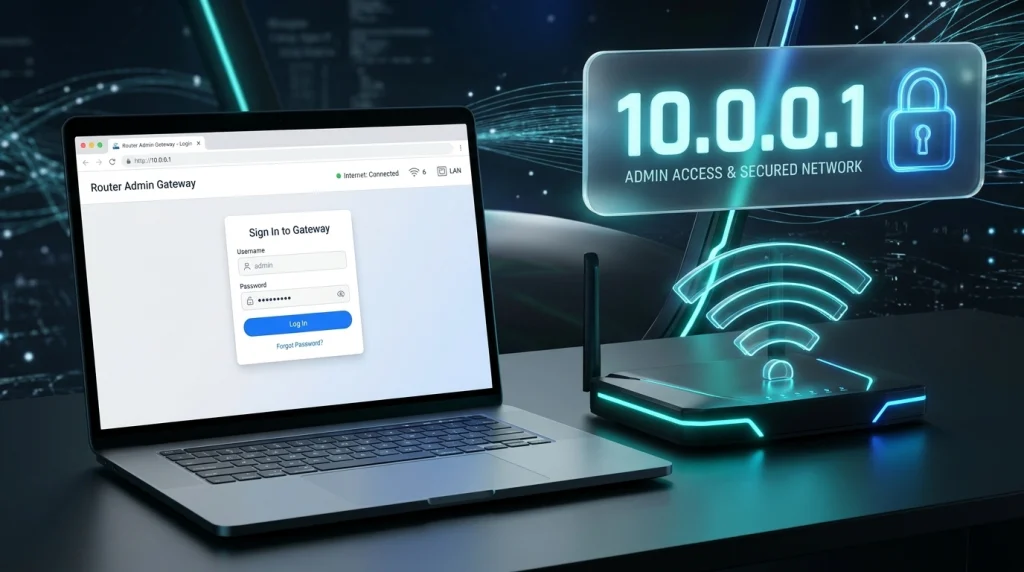
10.0.0.1 is a private IP address that some routers use as a default gateway for accessing their admin panel and managing network settings. If your router uses this address, you can enter it in your browser to open the login page. The 10.0.0.1 login process lets you manage settings such as your WiFi name, wireless password, connected devices, and network security, depending on your router model.
Router Login Quick Access
Pick your router IP, we’ll open the right page
Select your router’s default IP below. Your current IP opens the official router login page, and every other IP opens its own step-by-step login guide in a new tab.
Default IP
10.0.0.1
Opens
Official login page
The official router page opens only when your device is connected to that router’s Wi-Fi or cable.
Quick Answer Box
To log in to 10.0.0.1:
- Connect your phone or computer to the router’s WiFi or Ethernet network.
- Open a browser and type http://10.0.0.1 in the address bar.
- Press Enter to open the router login page.
- Enter the administrator username and password provided for your router.
- Click Login to access the admin dashboard, if your router uses this address.
Default credentials: These vary by router brand and model. Check the label on your router or its official manual instead of assuming a common username and password will work.
Security tip: Change the default administrator password after logging in.
How to Log In to 10.0.0.1
Follow these steps to access your router’s administration page.
Step 1: Connect to Your Router
Connect your phone, computer, or laptop to the router’s WiFi network. You can also use an Ethernet cable for a wired connection. Make sure you are connected to the router you want to configure.
Step 2: Open the Login Address
Open Chrome, Firefox, Safari, or another web browser. Enter the following address directly into the address bar:
http://10.0.0.1
Press Enter or Go. Do not enter the address into a search engine. If the page does not load, check whether your router actually uses this gateway address.
Step 3: Enter Your Admin Credentials
When the login page appears, enter the administrator username and password. You can usually find the original credentials on the router label, in its manual, or in documentation provided by your internet service provider.
Step 4: Access the Admin Panel
After successful authentication, you can open the available network settings. Menu names and features vary by manufacturer, firmware, and internet provider.
Security tip: Change the default administrator password after your first successful login if it has not already been changed. Choose a strong, unique password.
What Is 10.0.0.1?
This address belongs to the private IPv4 address range reserved for local networks. Private addresses are commonly used inside homes, offices, and other networks. They are not directly routable across the public internet. Source: IANA Private-Use IP Addresses.
A router may use this address as its local gateway, allowing connected devices to communicate with the router and reach its configuration interface. However, not every router uses the same address. Some use alternatives such as 192.168.0.1 or 192.168.1.1.
Difference Between 10.0.0.1 and 10.0.0.0.1
These addresses are not interchangeable. 10.0.0.1 is a valid IPv4 address containing four decimal numbers separated by three dots. The string 10.0.0.0.1 contains five numbers and is not a valid IPv4 address.
If the login page does not open, check the address carefully for extra digits, missing dots, or typing mistakes.
10.0.0.1 Admin Username and Password
The correct administrator credentials depend on the router’s manufacturer, model, firmware, and internet provider. There is no single username and password that works on every device.
| Login item | What you need to know |
|---|---|
| Router address | http://192.168.1.254, if it is your current default gateway |
| Alternate router IP | 10.0.0.1, if configured as your gateway |
| Username | Check the router label or official manual, if a username is required |
| Admin password | Use the current administrator password or setup details supplied with the router |
| Connection | Connect to the router through Wi-Fi or Ethernet |
How to Find Your Default Password
- Check the sticker on the router’s back, bottom, or side.
- Look for the administrator login details in the user manual.
- Check your internet provider’s official setup instructions.
- If you previously changed the password, use your current administrator credentials.
Do not confuse the WiFi password with the router administrator password. They may be different and control different functions.
What If Your Admin Password Does Not Work?
Check the spelling and capitalization of your credentials. If you previously changed the password, the original default details may no longer work.
If you cannot recover the administrator password, consult your router’s official instructions for recovery or factory reset. A factory reset can erase your WiFi name, password, and other custom settings, so use it only when necessary.
What Can You Do After Logging In?
The options available depend on your router and service provider. Common features include:
Change Your WiFi Name and Password
Look for Wireless, WiFi, or WLAN settings. You may be able to update your network name (SSID) and wireless password. Save your changes and reconnect your devices if the network details change.
Manage Connected Devices
Some admin panels display connected phones, computers, smart TVs, and other devices. Review the device list to identify unfamiliar connections. The available options for blocking or managing devices vary by router.
Update Network Security
Check which wireless security options your router supports. Use WPA3 when available and compatible, or WPA2-AES if WPA3 is unavailable. Avoid outdated security protocols.
Restart Your Router
Some router interfaces include a reboot option. Restarting can help resolve temporary connection problems. Do not confuse restarting the device with performing a factory reset, which can remove saved configuration.
Brands Using 10.0.0.1
Several router manufacturers and internet providers operate equipment that may use private gateway addresses. However, the address depends on the particular model and network configuration. A brand name alone does not confirm that its devices use 10.0.0.1.
The following names are relevant to the brand and provider list you supplied:
- Ado Piso WiFi
- Arris
- Aztech
- Cisco
- Claro
- I Connect
- Intelbras
- Inteno
- LPB Piso WiFi
- RF Net
- Rogers
- Shaw
- SMC
- Technicolor
- Videotron
- Wi Fi5 Soft
- Xfinity
This is a list of brands and providers to investigate, not a verified list of devices that all use this gateway. To confirm the correct address, check your device label, model-specific manual, or internet provider’s official instructions.
How to Check Your Router’s IP Address
On Windows, open Command Prompt, type ipconfig, and press Enter. Find the Default Gateway entry for your active network connection.
On a phone, check the connected WiFi network’s details for a Router or Gateway field. The exact menu varies by operating system and device.
If the displayed gateway differs from 10.0.0.1, use the address shown by your device.
10.0.0.1 Piso WiFi Login and Pause Time
Piso WiFi systems may provide a customer portal for managing internet access, prepaid time, or session controls. These functions depend on the installed Piso WiFi system and its software.
How to Access the Piso WiFi Portal
- Connect to the relevant Piso WiFi network.
- Open a browser and follow the portal address provided by the network operator.
- Follow the on-screen instructions to access the available internet session options.
- If you manage the system, use the administrator address and credentials supplied with your equipment.
The customer portal and administrator panel are not necessarily the same page. Entering 10.0.0.1 will work only if the system is configured to use that address.
How Does the Pause Time Feature Work?
On supported Piso WiFi systems, a pause feature may let users temporarily stop an internet session and preserve eligible remaining time. The exact behavior, time limits, and available controls depend on the system configuration.
If the pause option is missing, check the portal instructions or contact the network operator. Do not assume that every Piso WiFi installation supports the same pause functionality.
How to Fix 10.0.0.1 Not Working
If the login page fails to load, use these troubleshooting steps before changing your router configuration.
1. Check Your Network Connection
Make sure your device is connected to the correct router’s WiFi network or connected through Ethernet. Mobile data alone will not normally provide access to your local router interface.
2. Verify the IP Address
Enter the address carefully and confirm that your device’s default gateway is correct. Your router may use another private IP address.
3. Try Another Browser
Open the address in a different browser or try a private browsing window. Also check that you entered the IP in the address bar rather than the search box.
4. Temporarily Check VPN Settings
A VPN or unusual network configuration can sometimes interfere with access to a local router. If necessary, disconnect the VPN temporarily and retry while connected to your own network.
5. Restart the Router
If the router is unresponsive, restart it according to the manufacturer’s instructions. Allow it to finish booting before trying again.
6. Use Factory Reset Only as a Last Resort
If you still cannot access the admin panel, consult the official manual or contact your provider. A factory reset may restore default settings, but it can also erase custom configuration and interrupt your internet service.
Is It Safe to Use 10.0.0.1?
Yes, accessing your own router through its private gateway is a normal network administration task. The important point is to ensure you are connected to the correct network and using the legitimate router interface.
Use a strong administrator password, update your router firmware when the manufacturer provides updates, and avoid sharing login credentials. Never enter your password into an unfamiliar page simply because it displays a router-related address.
Remember that 10.0.0.1 is a private address, not proof that a page is safe by itself. If the page looks unfamiliar, verify the address and your router’s documentation before entering credentials.
Frequently Asked Questions
What is 10.0.0.1 used for?
It is a private IPv4 address that some routers use as a local gateway or administration address. Its exact role depends on the network configuration.
How do I log in to my router?
Connect to your router, enter its correct gateway address in a browser, and provide the administrator credentials. If 10.0.0.1 is not your gateway, use the address shown in your network settings.
What is the default username and password?
There is no universal login combination. Check the router label, official manual, or instructions from your internet provider.
Why is the login page not opening?
Your device may be connected to the wrong network, the IP address may be incorrect, or the router may use a different gateway. Check your connection and default gateway first.
Can I access router settings on my phone?
Yes. Connect your phone to the router’s WiFi and enter the correct local gateway address in a browser. Some routers also offer an official mobile app.
Conclusion
Accessing your router’s administration page can help you manage WiFi settings, review connected devices, and improve network security. Start by confirming the correct gateway, entering the address in your browser, and using the credentials provided for your specific device.
If the login page does not open, check your connection and gateway before attempting a reset. After gaining access, change any default administrator password and keep your router’s security settings up to date.

Hi, I’m James. I’ve spent 10 to 11 years working hands-on with home networking setups and router configurations, helping everyday users troubleshoot and get online quickly. I created 19216811-login.com to share clear, tested guides for logging into and configuring your router, based on that real-world experience. My goal is to make router setup simple for everyone, one guide at a time.