D-Link Router Login
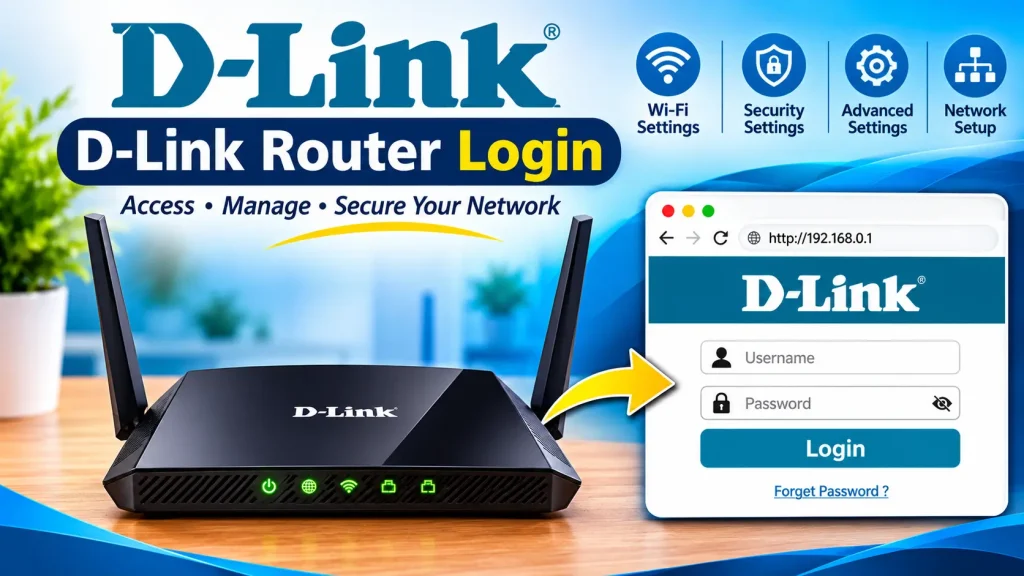
To access your D-Link router settings, connect your phone or computer to the router and open http://192.168.0.1 in a web browser. You can also try http://dlinkrouter.local if your model supports it. Enter your administrator password to access the D-Link dashboard and manage your Wi-Fi, security, and network settings.
Router Brand Login Guides
Pick your router brand, we’ll open the right page
Select your router brand below. Your current brand opens its official login page, and every other brand opens its own step-by-step login guide in a new tab.
Default IP
Opens
Official login page
D-Link Router Login: Quick Answer
How to log in to a D-Link router:
- Connect your phone or computer to your D-Link router’s Wi-Fi network or use an Ethernet cable.
- Open a web browser and type http://192.168.0.1 in the address bar.
- If it does not open, try http://dlinkrouter.local if supported by your model.
- Enter your D-Link administrator password. Use the username shown on your router label or manual if requested.
- Click Login to access the router admin dashboard.
Default credentials: D-Link login details vary by model. Some older routers may use a blank password, while newer models may have a password printed on the device label or created during setup.
Security tip: Change the administrator password after logging in to protect your router settings.
How to Log In to a D-Link Router
Follow these steps to complete your D-Link router login:
- Connect your device to the main D-Link Wi-Fi network or an Ethernet LAN port.
- Open Chrome, Firefox, Edge, or another browser.
- Enter http://192.168.1.1 in the address bar.
- If the page does not open, try http://dlinkrouter.local if your router supports it.
- Enter the administrator password and username if requested.
- Click Login to open the settings dashboard.
Once logged in, you can manage your Wi-Fi name, password, connected devices, and other network settings.
What Is the Default D-Link Router IP Address?
Many D-Link home routers use 192.168.0.1 as their default login address. Some models also support dlinkrouter.local. However, the correct address can vary depending on the router model and configuration.
If neither address opens the login page, check the router label, quick-start guide, or official manual. You can also find the correct address by checking the default gateway on a connected device.
What Is the Default D-Link Router Username and Password?
There is no single username and password that works for every D-Link router. Some older models may use admin with a blank password, while newer devices may require a password printed on the router label or created during setup.
If you cannot log in:
- Check the label on the back or bottom of your router.
- Review the manual for your exact D-Link model.
- Use the administrator password created during initial setup.
- Contact your internet provider if it supplied the router.
Important: Your D-Link administrator password is different from your Wi-Fi password. The admin password opens the router settings, while the Wi-Fi password connects your devices to the network.
How to Change D-Link Wi-Fi Name and Password
You can change your D-Link Wi-Fi name (SSID) and password from the router admin dashboard.
- Log in to your D-Link router using the correct address.
- Open Wi-Fi, Wireless, or Settings.
- Enter your preferred Wi-Fi network name.
- Set a strong, unique Wi-Fi password.
- Select WPA2-Personal or WPA3-Personal if supported.
- Click Save or Apply to store the changes.
Your wireless connection may disconnect after saving. Reconnect your devices using the updated Wi-Fi details.
How to Change the D-Link Administrator Password
Changing the administrator password helps protect your router settings from unauthorized access.
- Log in to the D-Link admin panel.
- Open Management, System Admin, Tools, or Admin Settings.
- Find the administrator password option.
- Enter a new, strong password.
- Save the changes and store your new password securely.
Menu names may vary depending on your D-Link model and firmware.
How to Find Your D-Link Router IP Address
If 192.168.0.1 does not open the D-Link login page, check the default gateway on a connected device.
- Windows: Open Command Prompt, type
ipconfig, and find Default Gateway. - Mac: Open System Settings, select Network, and check your active connection details.
- Android or iPhone: Open your connected Wi-Fi network details and look for Router or Gateway.
Enter the displayed gateway address in your browser to access the router admin page.
D-Link Router Login Not Working? Try These Fixes
If you cannot access your D-Link router login page, try these solutions:
1. Check Your Connection: Make sure your device is connected to the main D-Link Wi-Fi network or a LAN port.
2. Verify the Login Address: Try 192.168.0.1 or dlinkrouter.local if your model supports it.
3. Use the Browser Address Bar: Enter the router address directly into the browser address bar, not the search box.
4. Check Your Password: Confirm that you are using the administrator password rather than the Wi-Fi password. Check capitalization and spelling.
5. Find the Correct Gateway: Your router’s IP address may have been changed. Check the default gateway in your device’s network settings.
6. Restart Your Router: Restart the router, wait for it to boot completely, and try logging in again.
If the password is rejected, avoid repeated guesses. Check the router label or official support guide for your exact model.
Forgot Your D-Link Login Password? How to Reset It
If you have forgotten your D-Link administrator password, first check whether it was saved in your password manager or documented during installation. If another person configured the router, ask them for the login details.
If the password cannot be recovered, a factory reset may be required:
- Locate the physical Reset button on your D-Link router.
- Keep the router powered on.
- Follow the reset instructions for your exact model.
- Wait for the router to restart.
- Open the correct D-Link login address.
- Complete the setup and create a new administrator password.
Note: A factory reset removes custom settings, including Wi-Fi names, passwords, internet settings, and other configurations. Make sure you have the details needed to reconnect to your internet service before resetting.
How to Secure Your D-Link Router After Login
After accessing your D-Link router settings, follow these basic security steps:
- Change the administrator password from any known default.
- Use a strong Wi-Fi password.
- Enable WPA2 or WPA3 security if supported.
- Install firmware updates using the router interface or official D-Link instructions.
- Disable remote administration if you do not need it.
- Avoid sharing your router login details with unknown people or websites.
Frequently Asked Questions
What is the D-Link router login address?
Many D-Link home routers use 192.168.0.1. Some models also support dlinkrouter.local. Check your router label or manual if neither address works.
What is the default D-Link router password?
There is no universal D-Link password. Some older models may use a blank password, while newer devices may use a password printed on the router label or created during setup.
Why is my D-Link login page not opening?
Make sure your device is connected to the D-Link network, enter the address directly in your browser, and verify the router’s current gateway IP.
How do I change my D-Link Wi-Fi password?
Log in to the router dashboard, open Wi-Fi or Wireless Settings, enter a new password, and save the changes. Reconnect your devices using the updated password.
Is D-Link the same as D Link?
Yes. D-Link is the brand name, while D Link and DLink are common ways people write or search for the same brand.
Will resetting my D-Link router delete my settings?
Yes. A factory reset generally removes custom Wi-Fi, internet, and administrator settings. You will need to configure the router again.
Conclusion
D-Link router login allows you to manage your Wi-Fi network, administrator password, and security settings. Open 192.168.0.1 or dlinkrouter.local if supported, then enter your administrator credentials. If you cannot access the dashboard, check your network connection and login details before considering a factory reset.

Hi, I’m James. I’ve spent 10 to 11 years working hands-on with home networking setups and router configurations, helping everyday users troubleshoot and get online quickly. I created 19216811-login.com to share clear, tested guides for logging into and configuring your router, based on that real-world experience. My goal is to make router setup simple for everyone, one guide at a time.