192.168.8.1 Login Admin
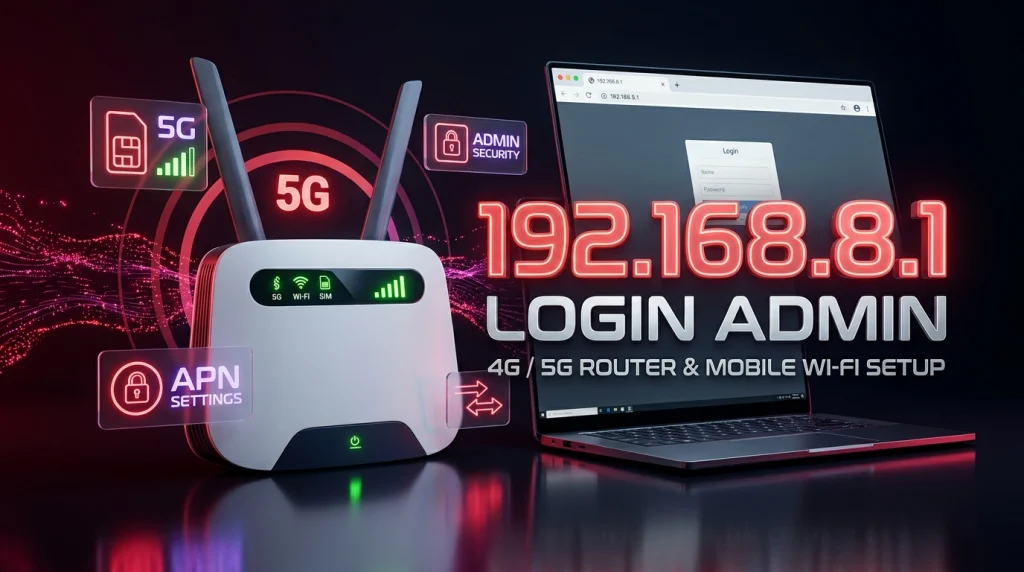
To log in to 192.168.8.1, connect your phone or computer to the router’s Wi-Fi network, open a web browser, and enter http://192.168.8.1 in the address bar. If your router uses this IP address, its admin login page should appear. Enter the correct login password to access the settings.
The address is commonly used by some Huawei Mobile WiFi and CPE devices, but it does not work with every router. If the page does not open or your password is rejected, follow the steps below to find the correct gateway and troubleshoot the problem.
192.168.8.1 IP Address
To access the admin page type 192.168.8.1 into your web browser’s address bar or click on the link below.
Can’t Login? Try These Fixes
- Make sure your device is connected to the router’s Wi-Fi or directly with a LAN cable.
- Type the IP in the address bar, not in the search box. Use http:// instead of https://.
- Check the correct IP: on Windows run ipconfig and look at Default Gateway; on phone check Wi-Fi details.
- Turn off VPN or proxy, then try another browser or an incognito window.
- Restart the router and try again after 2 minutes.
- Last option: reset the router with the reset button (hold ~10 seconds). This erases all your settings.
Based on your local ip address, this should be your router admin ip address. This is only the case if you are in the same network as your wifi router.
How to Log In to 192.168.8.1
Follow these steps to access your router’s admin panel:
- Connect to your router: Join its Wi-Fi network or connect your computer to a LAN port using an Ethernet cable.
- Open a browser: Use Chrome, Safari, Firefox, or another browser on your device.
- Enter the IP address: Type
http://192.168.8.1into the address bar, not the search box. - Open the login page: Press Enter and wait for the router’s management page to load.
- Enter your credentials: Use the administrator password provided with your router or created during setup.
- Access router settings: After logging in, open the relevant menu to manage your Wi-Fi, security, or network settings.
If the login page does not appear, your router may use a different IP address. Confirm the correct gateway before trying other fixes.
192.168.8.1 Default Username and Password
There is no single username and password that works on every router using 192.168.8.1. Login details depend on the device model, internet provider, and previous configuration.
| Login detail | Where to check |
|---|---|
| Router IP address | Device label, user manual, or active default gateway |
| Admin username | Router label or manufacturer’s instructions, if required |
| Admin password | Device label, setup card, or password created during setup |
| Wi-Fi password | Router label or Wi-Fi settings; it may differ from the admin password |
Some routers use a username and password, while others require only an administrator password. Do not assume that admin/admin or another common combination will work on your device.
If you have a Huawei router or Mobile WiFi device, check the label on the device and the instructions for your exact model. Your internet provider may use customized settings.
What Is 192.168.8.1?
192.168.8.1 is a private IPv4 address that can be used as a router’s local management address or default gateway. It is not a public website that anyone can access from anywhere on the internet.
When your device connects to the router’s local network, you may be able to enter this address in a browser to open the router’s settings. You do not necessarily need an active internet connection to reach the local admin page, but your device must have a suitable connection to the router.
The address is associated with some Huawei Mobile WiFi and CPE products. However, not every Huawei router or every device from another brand uses it. The actual address depends on the model and configuration.
How to Find Your Router’s IP Address
If 192.168.8.1 does not open the login page, check your device’s default gateway. This is usually the local address used to reach the router.
On Windows
- Connect your computer to the router.
- Open Command Prompt.
- Type
ipconfigand press Enter. - Find the active Wi-Fi or Ethernet adapter.
- Look for the Default Gateway value.
- Enter that address into your browser.
On macOS
- Open System Settings.
- Select Network and choose your connected Wi-Fi or Ethernet connection.
- Open its network details and find the Router address.
- Enter that address in your browser.
On a Phone
Open the settings for your connected Wi-Fi network and look for a field named Router, Gateway, or a similar term. Its name and location vary by phone and operating system.
Use the address shown by your device rather than assuming that every router uses 192.168.8.1.
192.168.8.1 Login Not Working? Try These Fixes
If you cannot access the admin page, try the following solutions in order.
1. Check the IP Address
- Make sure you typed
192.168.8.1correctly. Enter it directly in your browser’s address bar and includehttp://if needed. - Do not confuse the number
8with another digit, and do not enter the address into a search engine.
2. Connect to the Correct Wi-Fi Network
- Your phone or computer needs to be connected to the router you want to manage. If you are using mobile data or connected to another router, the login page may not open.
- Reconnect to the correct Wi-Fi network or use an Ethernet cable. If necessary, temporarily turn off mobile data on your phone while testing the local address.
3. Verify the Default Gateway
- Your router may have been configured with a different local IP address. Check the default gateway using the steps above and enter that address instead.
- This is particularly useful if the router was previously configured by an internet provider or another administrator.
4. Try Another Browser or Device
- Open the address in another browser or use a second device connected to the same network. If you are using a VPN or proxy, temporarily disconnect it and test again.
- Avoid permanently disabling security software or changing unrelated network settings to solve a local login problem.
5. Restart the Router
- If the correct address still does not respond, restart the router according to the manufacturer’s instructions. Wait for the device to finish starting up, reconnect to its network, and try again.
- Do not unplug the router during a firmware update.
6. Recover or Reset the Admin Password
- If the login page opens but rejects your password, check whether you are entering the administrator password rather than the Wi-Fi password. They may be different.
- Look for the correct recovery procedure in your router’s manual or on the manufacturer’s official support website. If the device was supplied by your internet provider, contact the provider before resetting it.
- Factory reset should be your last resort. It can erase your Wi-Fi name, passwords, internet configuration, and other custom settings. Reset-button procedures vary by model, so follow the instructions for your exact device rather than using a generic button-pressing sequence.
How to Change Your Wi-Fi Name and Password
Once you have logged in, you can usually update your wireless settings. Menu names vary by router, but the process is generally similar.
- Open the Wi-Fi, Wireless, or WLAN section.
- Find the network name, also called the SSID.
- Enter your preferred Wi-Fi name.
- Find the Wi-Fi password or security settings.
- Set a strong, unique password and use the strongest supported security option, preferably WPA3 or WPA2-AES.
- Save the changes and reconnect your devices using the new details.
Changing the Wi-Fi password may disconnect phones, laptops, smart TVs, and other devices until they reconnect with the updated credentials.
For better security, also change a weak or shared router administrator password. This is separate from the password used to join your Wi-Fi network.
Can You Change the 192.168.8.1 Router IP Address?
Some routers allow you to change the local IP address from their LAN or network settings. However, the option may not be available on every model, especially when an internet provider manages the device.
Before changing the address, check the manufacturer’s instructions and record the existing network settings. Changing the router’s LAN address can interrupt your connection to its admin page, and you may need to use the new address afterward.
If your router is provider-managed, ask your internet provider before modifying its network configuration.
Frequently Asked Questions
What is 192.168.8.1 used for?
192.168.8.1 is a private IP address that some routers and mobile broadband devices use to provide access to their local management page. It works only when it is the correct address for the device and your connection is suitable.
What is the default password for 192.168.8.1?
There is no universal default password for this IP address. Check the router label, user manual, setup information, or official support instructions for your specific model.
Why is 192.168.8.1 not opening?
Your device may be connected to the wrong network, or the router may use another gateway address. Check the IP for typing errors, reconnect to the correct network, and verify the active default gateway.
Is 192.168.8.1 a Huawei router IP address?
Some Huawei Mobile WiFi and CPE devices use 192.168.8.1, but not all Huawei products do. Check your device label or official manual to confirm the correct address.
What should I do if I forget my router admin password?
Check the manufacturer’s password-recovery instructions or contact your internet provider if it manages the router. Consider a factory reset only if recovery is not possible and you know how to restore the required settings.
Conclusion
The 192.168.8.1 login process is straightforward when your router uses this address and you have the correct administrator credentials. Connect to the router, enter the IP address in your browser, and sign in to manage its settings.
If login fails, check your network connection, verify the default gateway, and confirm the correct password for your device. Use the manufacturer’s instructions for password recovery, and avoid a factory reset unless it is necessary.

Hi, I'm James. I've spent 10 to 11 years working hands-on with home networking setups and router configurations, helping everyday users troubleshoot and get online quickly. I created 19216811-login.com to share clear, tested guides for logging into and configuring your router, based on that real-world experience. My goal is to make router setup simple for everyone, one guide at a time.